BlogComfyUI
How to install and set up ComfyUI in 2026
How to install ComfyUI on Windows, Linux or Mac: which of the four installs to pick, then models, the Manager, your first image and the day-one errors.
Esha Senior AI Developer
On this page13 sections
The short version
- Pick the Desktop app to be running in about fifteen minutes, portable for a self-contained folder you control, manual if you're a developer, and Cloud if you have no suitable GPU.
- ComfyUI itself is about a 2 GB download. The models are the big one: plan on 10 to 25 GB for one modern image model.
- The Manager is on by default in the Desktop app and off everywhere else. Switching it on takes one pip command and one launch flag.
- Updating the portable build doesn't update the Manager's requirements. That catches almost everyone once.
Installing ComfyUI is easy now. The confusing part is that there are four ways to do it, every tutorial picks a different one, and they behave differently afterwards. So this guide starts by helping you choose, then does each route properly, then covers the part most guides skip: what to do in the first twenty minutes after it opens.
Everything here was done on Windows 11 with an RTX 4090, on the Desktop app and the Windows portable build, both running ComfyUI 0.36.0. Where you see a number, like a file size, a folder or a download time, it was read off those installs.
Which install should you pick?
| Route | Good for | Trade-off | Manager |
|---|---|---|---|
| Desktop app | Getting to a first image quickly. A normal installer, automatic updates, a shared models folder. | It's less obvious where things live, and you're on its release schedule. | On by default |
| Windows portable | One folder with its own Python. Move it, copy it, delete it. | You update it yourself by running a .bat file. | Off, one command to add |
| Manual (git + venv) | Developers, Linux and macOS, several versions side by side, custom PyTorch builds. | You own the Python environment, including when it breaks. | Off, one command to add |
| Comfy Cloud | No GPU, a laptop, or a machine you can't install things on. | It's paid, and your files live on someone else's servers. | Handled for you |
If you're not sure, install the Desktop app. It's the route the ComfyUI README recommends for most people, it manages its own Python, and nothing stops you adding a portable copy later. The two can even share one models folder, which is covered further down.
What you need
The official system requirements list supported platforms but don't give a minimum amount of VRAM, because the answer depends entirely on which model you run. Here's the practical version.
| Part | What you need |
|---|---|
| OS | Windows 10 or 11, Linux, or macOS on an Apple Silicon Mac. |
| GPU | NVIDIA is the smoothest path (PyTorch with CUDA 13.0). AMD works on Linux with ROCm 7.2 and on Windows with ROCm 10.0. Intel Arc and Apple Silicon are supported too. A CPU-only mode exists, but it's slow enough to be a last resort. |
| VRAM | 8 GB runs SD 1.5, SDXL and GGUF versions of FLUX. 12 GB runs FP8 FLUX, with part of the model kept in system RAM. 16 to 24 GB is where video models and full-size checkpoints become comfortable. |
| System RAM | 16 GB at the very least, 32 GB or more if you'll work with video. Models pass through RAM on their way to the GPU. |
| Disk | ComfyUI takes about 4 GB once installed. Leave 100 GB free: a single image model is 10 to 25 GB, and you'll collect them. |
| Python | Only matters for manual installs. 3.13 is recommended, 3.12 is the fallback if a custom node pack struggles, and 3.14 works but some custom nodes have issues. |
| Browser | The docs recommend Chrome 143 or later; older versions have known display glitches. The interface is a web page even inside the Desktop app. |
Route A: the Desktop app
The Desktop app runs on Windows and on Apple Silicon Macs (M1 or later, with macOS 13 or newer). There's no Linux version, so on Linux go to Route C. The steps and screenshots below are from Windows.
-
Download it
Go to comfy.org/download and click Download Desktop. It's free and open source. The cloud product on the same page is the paid one.
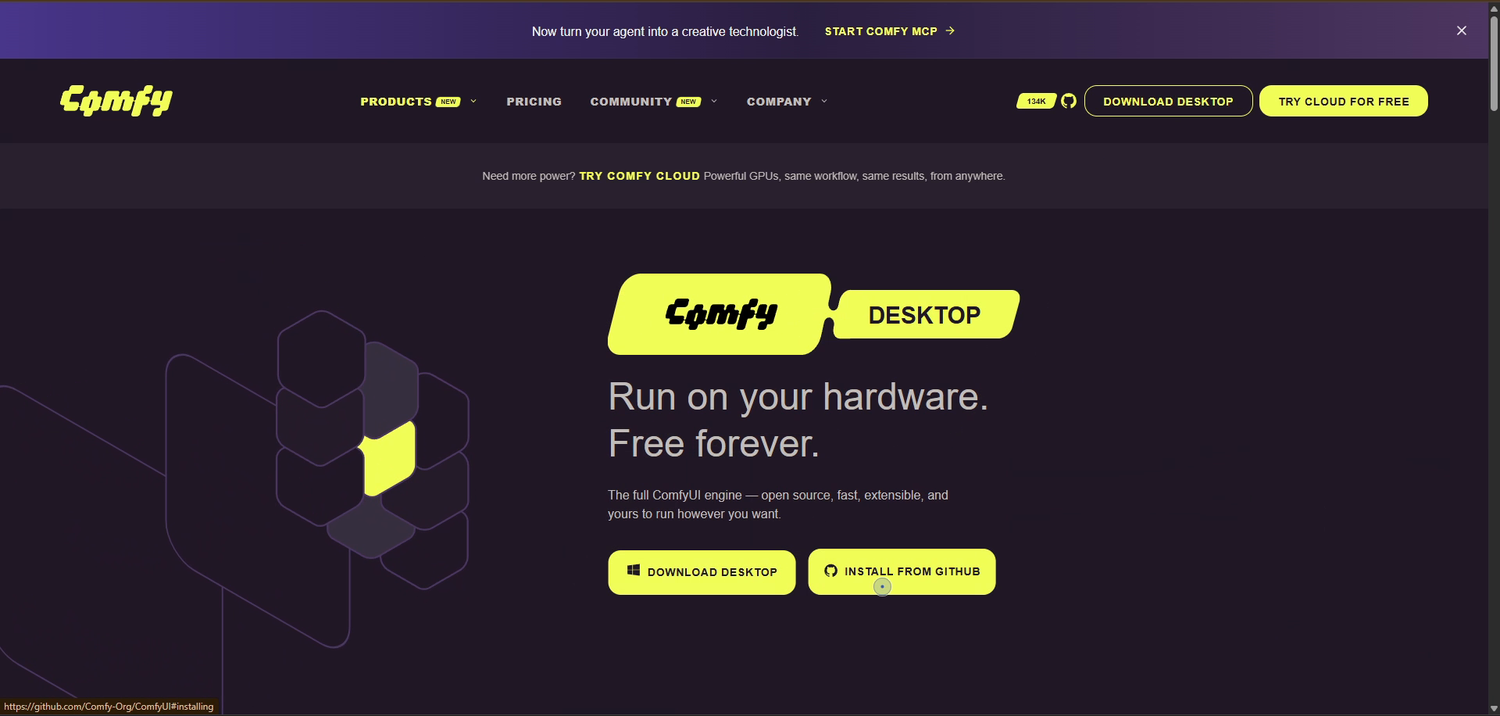
Two buttons: the installer, and the GitHub route covered in Route C. -
Run the installer
A standard Windows installer. It checks for the Microsoft Visual C++ Redistributable and installs it if it's missing. Let it: that component is behind a lot of the
c10.dllerrors people hit later.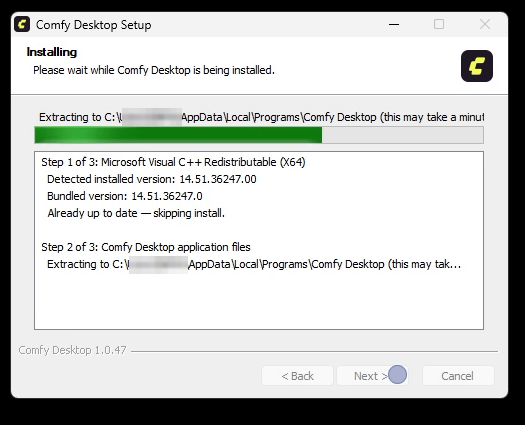
Three steps, nothing to decide. -
Choose Local
On first launch it asks how you want to run Comfy. Cloud rents GPUs; Local uses your own. Pick Local, tick the agreement and click Continue. As the screen says, you can switch later.
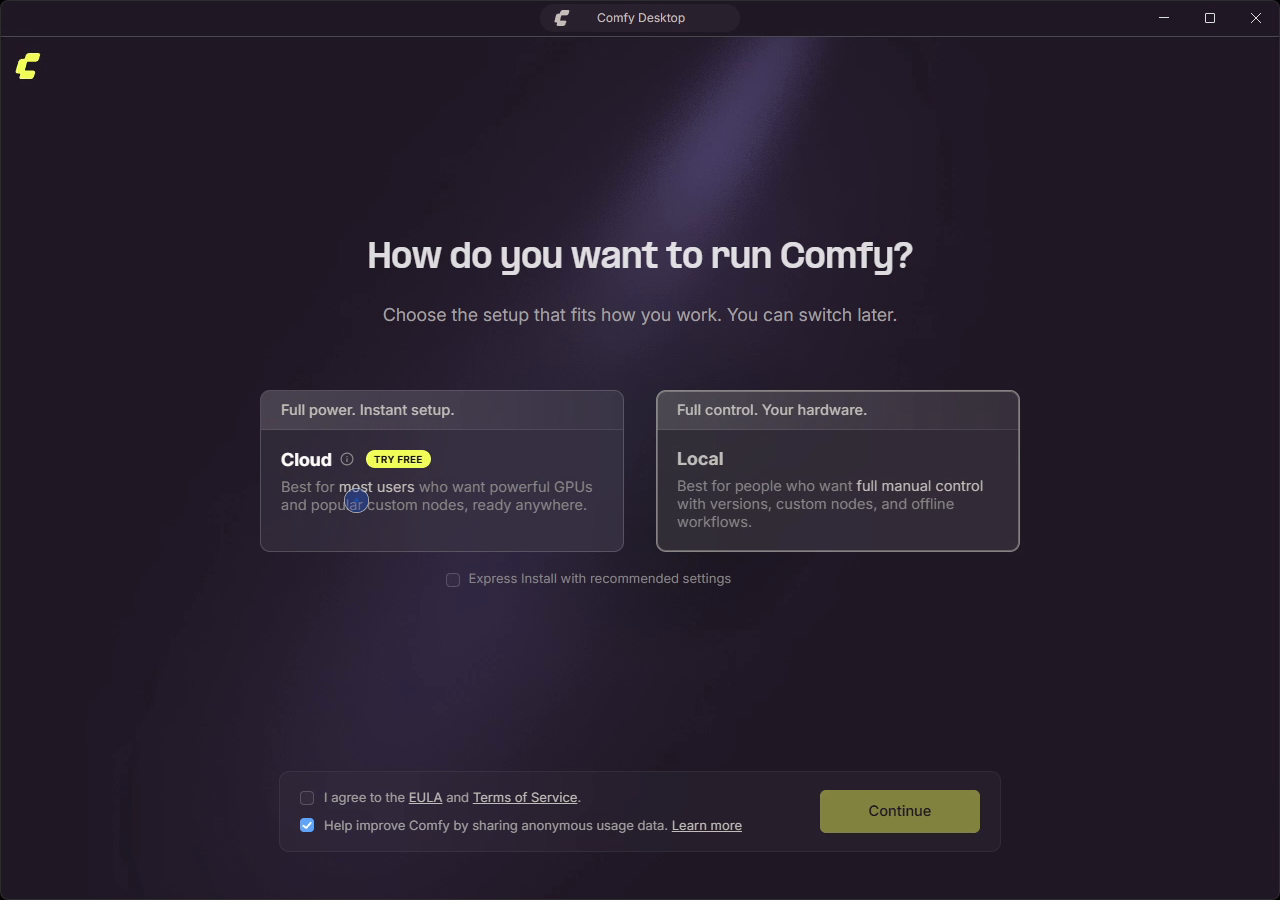
Express Install accepts the recommended settings in one go. Leave it unticked and you get the next screen, where you can check what's being installed. -
Check the new instance
This screen sets up the actual ComfyUI environment. The defaults are right for most people: Standalone, the Stable release, and the recommended version. What matters is Hardware. Pick the one that matches your graphics card; each line tells you the ComfyUI version, the Python version and how big the download is.
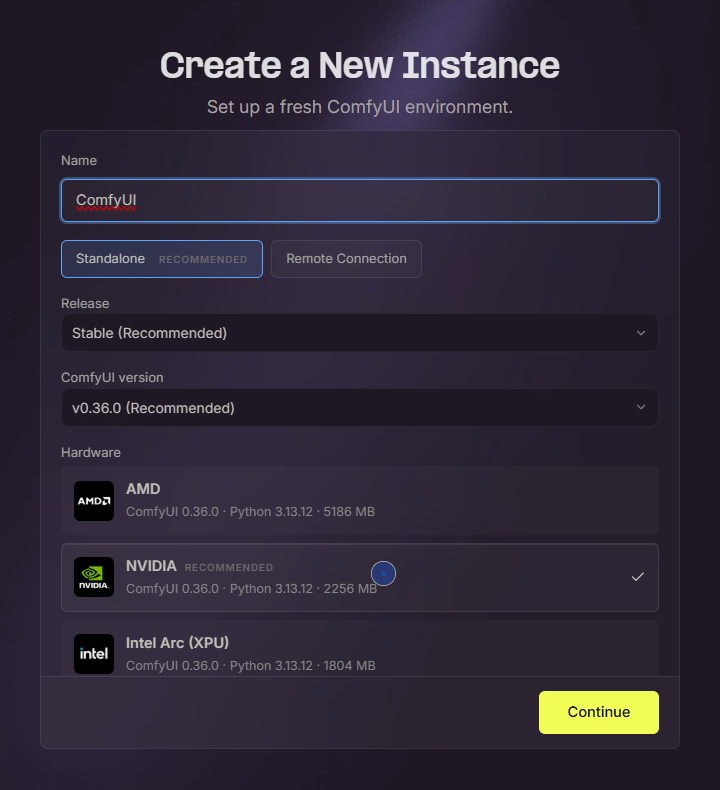
On an NVIDIA card, the NVIDIA build is a 2,256 MB download with ComfyUI 0.36.0 and Python 3.13.12. -
Skip the starter workflow (probably)
Next it offers to set you up with a ready-made workflow, and downloads that workflow's models during setup. Look at the sizes before you choose: the recommended video workflow is about 53 GB, and some of the options run on paid credits. Skip & Install gets you a working ComfyUI now, and you can pick a smaller model from the templates afterwards.
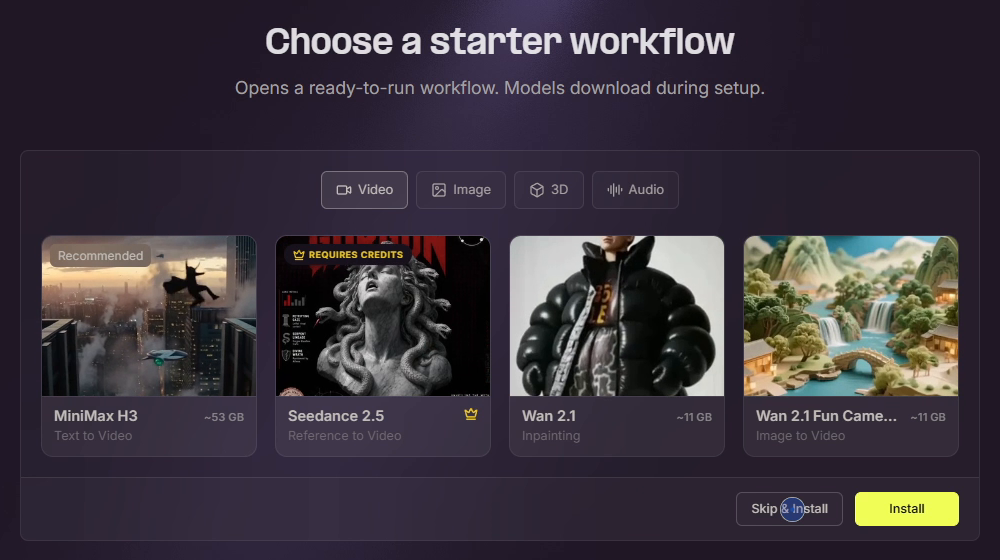
"Models download during setup" means all of them, before you see the canvas. Skip & Install is the quick way through. -
Let it download and unpack
It now downloads the environment (the 2,256 MB NVIDIA build) and unpacks it. At about 4.5 MB/s that took me roughly twelve minutes from clicking Continue to seeing the canvas. It only happens once, and ComfyUI opens with the template browser when it's done.


Once it's installed, this is where everything lives:
the ComfyUI install itself
%LOCALAPPDATA%\Comfy-Desktop\ComfyUI-Installs

models and outputs, shared between installs
%LOCALAPPDATA%\Comfy-Desktop\ComfyUI-Shared

app settings and logs
%APPDATA%\Comfy Desktop
I haven't run the Mac version for this guide, so this part is from the
official Mac instructions:
the download is a .dmg, you drag Comfy Desktop into Applications, and it keeps its
installs in ~/ComfyUI-Installs and your models and outputs in
~/ComfyUI-Shared.
Route B: the Windows portable build
One folder, with its own Python inside, and nothing registered with Windows. It's my choice for a second install, because you can copy the folder to another drive and it keeps working.
-
Download the archive
From the releases page on GitHub, or directly:
https://github.com/Comfy-Org/ComfyUI/releases/latest/download/ComfyUI_windows_portable_nvidia.7zIt's about 1.9 GB. The standard build comes with Python 3.13 and PyTorch for CUDA 13.0, and supports RTX 20-series cards and newer. There are separate builds for AMD and Intel, and a
cu126build with Python 3.12 for GTX 10-series and older cards, which the README warns not to use on anything newer. -
Extract it, and give it a few minutes
Right-click the file and choose Extract All, or use 7-Zip. It unpacks to 62,899 files and 3.87 GB, which took about six minutes here, so don't worry about the file count.
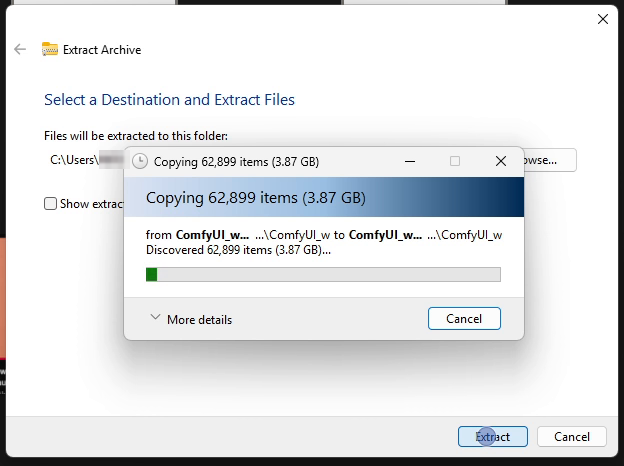
Extract it somewhere with a short path, like C:\ComfyUIor your Desktop. It doesn't have to be drive C: any drive works.If Windows blocks the .bat Files downloaded from the internet can trigger "Windows protected your PC". Click More info and then Run anyway, or before extracting, right-click the.7z, open Properties, tick Unblock and click Apply. -
Run it
Double-click
run_nvidia_gpu.bat. A console window opens, ComfyUI starts, and your browser opens at127.0.0.1:8188about fifteen seconds later.The other .bat files are for particular situations:
run_nvidia_gpu_fast_fp16_accumulation.batadds--fast fp16_accumulation, which trades a tiny amount of precision for speed on supported cards.run_cpu.batruns without a GPU. Fine for testing a small workflow, painful for anything else.advanced\run_nvidia_gpu_disable_api_nodes.batstarts ComfyUI with the paid cloud API nodes switched off.
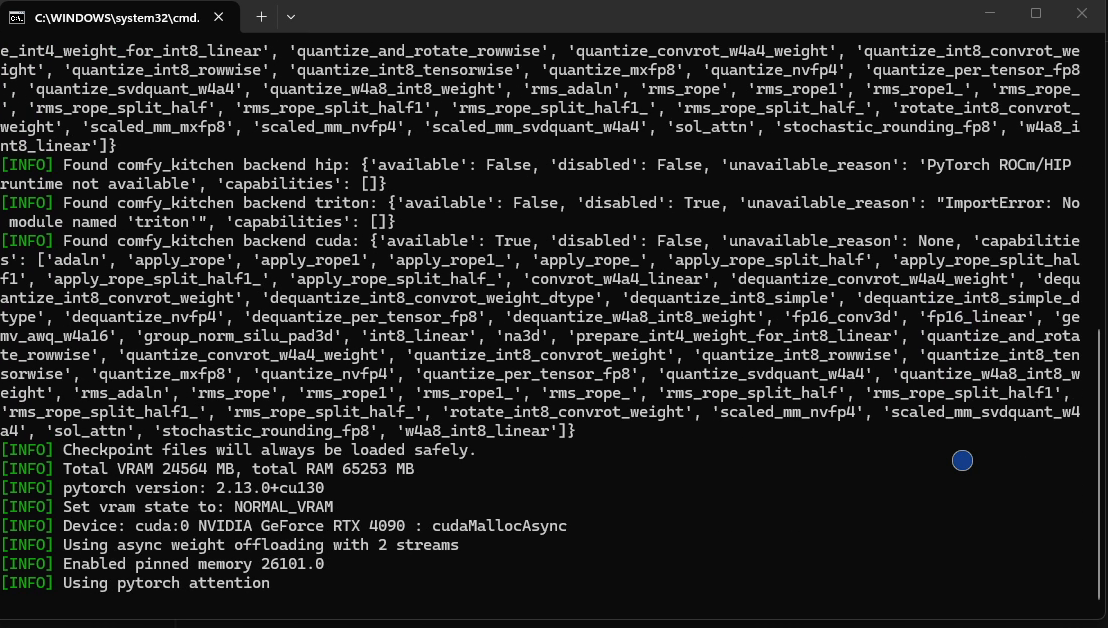
Read these lines whenever something feels wrong. If Device says cpuinstead of naming your graphics card, PyTorch can't see the GPU. That's the whole problem, and nothing else you change will help until it's fixed.


Route C: manual install from GitHub
The developer route: clone the repository, make a virtual environment, install PyTorch yourself. It's also the route on Linux, and the one to use if you want several versions side by side.
git clone https://github.com/Comfy-Org/ComfyUI.git
cd ComfyUI

python -m venv venv
venv\Scripts\activate

PyTorch first: this is the big one
pip install torch torchvision torchaudio --extra-index-url https://download.pytorch.org/whl/cu130

pip install -r requirements.txt

python main.py
On Linux or a Mac, the only change is how you make the venv and switch it on:
python3 -m venv venv
source venv/bin/activate
The PyTorch line depends on your graphics card. AMD cards on Linux use
pip install torch torchvision torchaudio --index-url https://download.pytorch.org/whl/rocm7.2
instead. On an Apple Silicon Mac, the README says to install the latest PyTorch nightly first,
following Apple's guide to accelerated PyTorch on Mac, then carry on from
pip install -r requirements.txt.
Two things go wrong here, and both are easy to avoid:
- Installing the requirements before PyTorch. Install torch first, with the CUDA index URL. Otherwise pip fetches a CPU-only build and everything runs at walking pace.
-
Forgetting to activate the venv. If you haven't run
venv\Scripts\activate, you're installing into your system Python and you'll lose an evening working out why nothing matches.
There's also comfy-cli, which wraps all of the above in two commands:
pip install comfy-cli
comfy install
Route D: Comfy Cloud
The official hosted version runs the same ComfyUI on rented GPUs, with popular models already available. It costs money and your work lives on their servers, but if you're on a laptop with built-in graphics it's the difference between doing this and not doing it. The Desktop app can connect to it as well, from that first "How do you want to run Comfy?" screen.
Installing ComfyUI Manager, and the flag nobody mentions
ComfyUI Manager installs custom node packs, tells you what a downloaded workflow is missing, and keeps things updated. You'll want it by your second day.
It now comes with ComfyUI as a Python package, but outside the Desktop app it's
not switched on by default. The Desktop app launches ComfyUI with
--enable-manager for you. Everywhere else, it takes two steps.
On the portable build
Open the portable folder, type cmd in Explorer's address bar to open a command
prompt there, and install the Manager's requirements into the bundled Python:
python_embeded\python.exe -s -m pip install -r ComfyUI\manager_requirements.txt
comfyui_manager==4.2.2 in ComfyUI 0.36.0.
Then add the flag to the launcher so it sticks. Right-click run_nvidia_gpu.bat,
choose Edit, and put --enable-manager at the end of the first line:
.\python_embeded\python.exe -s ComfyUI\main.py --windows-standalone-build --enable-manager
echo If you see this and ComfyUI did not start try updating your Nvidia Drivers to the latest. If you get a c10.dll error you need to install vc redist that you can find: https://aka.ms/vc14/vc_redist.x64.exe
pause
Save it, close ComfyUI, and run the .bat again. The Manager is now in the app.
On a manual install
pip install -r manager_requirements.txt
python main.py --enable-manager
The flag is needed every time you start ComfyUI, so put it in whatever script or shortcut you
launch it with. There are two related flags: --enable-manager-legacy-ui for the old
interface, and --disable-manager-ui, which keeps the Manager's background jobs
running but hides its interface.
What you get

requirements.txt and nothing else. They never touch
manager_requirements.txt. After updating a portable install, run the Manager's pip
command again, or the Manager can quietly stop loading.
Your first image
-
Open a template, not a blank canvas
Use the Templates panel (or Workflow → Browse Templates). Start with something small, such as a Z-Image-Turbo or SD 1.5 text-to-image template, rather than a 50 GB video model.
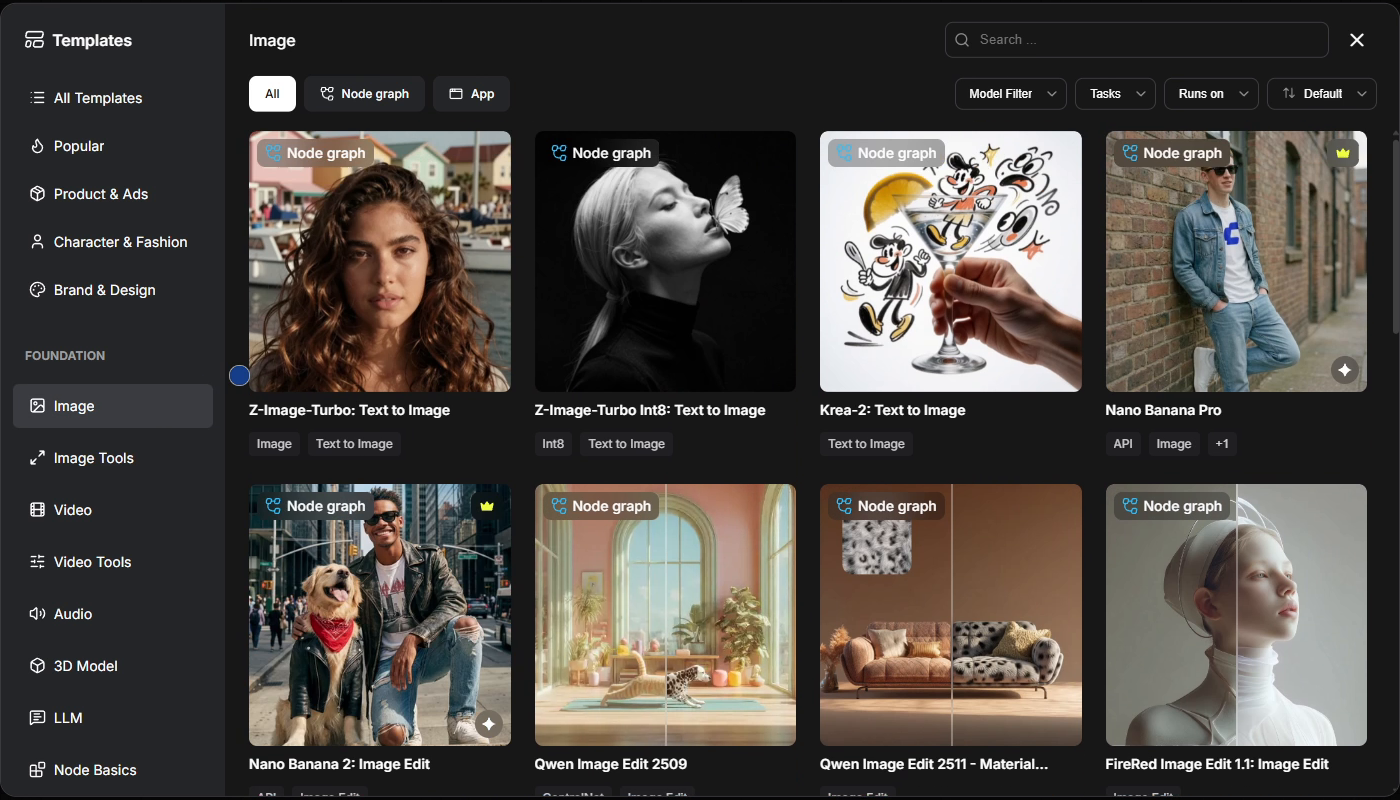
Categories on the left, working workflows on the right, each one wired correctly for the model it names. -
Let it fetch the models
If you don't have the files a template needs, it opens with a Missing Models panel that offers to download them, and shows how big each one is. Check the total. It's often 15 to 20 GB.
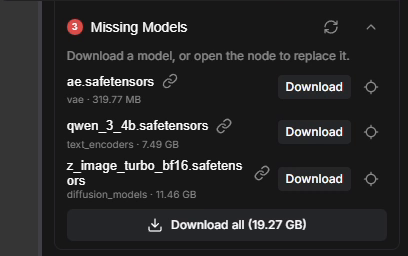
Z-Image-Turbo's three files: 19.27 GB in total. -
Know where files go if you download them yourself
Downloading from Hugging Face or Civitai yourself is often quicker. Which folder a file goes in depends on what kind of file it is, and most official templates include a note telling you exactly where:
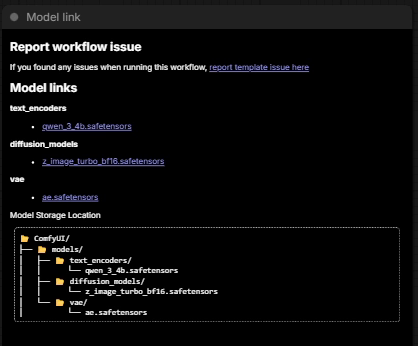
The note that comes inside most official templates. ComfyUI/models/ ├── checkpoints/ all-in-one models (SD 1.5, SDXL) ├── diffusion_models/ split models (FLUX, WAN, Qwen) ├── text_encoders/ clip_l, t5xxl, umt5, qwen ├── vae/ ae.safetensors and friends ├── loras/ └── controlnet/Put the file in, then press R in ComfyUI or refresh the browser tab. It appears in the node's list without a restart.
-
Press Run
The first run of a session loads the model into VRAM and is slow. The second run is the real speed. If a node turns red, the next-but-one section explains why.


One models folder for every install
The moment you have two installs, you don't want two copies of a 12 GB model. ComfyUI can read models from folders anywhere on your system, using a small config file.
In the ComfyUI folder of your portable or manual install there's a file called
extra_model_paths.yaml.example. Rename it to extra_model_paths.yaml and
point it at the folder you want to share. To reuse the Desktop app's models, point it at
Desktop's shared folder:
comfyui:
    base_path: C:/Users/YOU/AppData/Local/Comfy-Desktop/ComfyUI-Shared/models/
    checkpoints: checkpoints/
    diffusion_models: diffusion_models/
    text_encoders: text_encoders/
    vae: vae/
    loras: loras/
    controlnet: controlnet/
    upscale_models: upscale_models/
Replace YOU with your Windows user name and restart ComfyUI. Both installs now see
the same library. Two details: the Desktop app writes its own version of this file and marks it
"do not edit manually", so make the change on the portable side; and a key can list several
folders using the | syntax shown in the example file, which is how a folder like
clip from an older setup can sit alongside text_encoders.
Keeping it updated
Desktop
It tells you. When an update is ready, a Desktop Update Ready button appears at the top of the window. To check yourself, open the menu, then Desktop Settings and the Updates panel, where you can also turn on automatic updates.
From inside ComfyUI
With the Manager switched on, Help → Update ComfyUI updates ComfyUI to the latest stable release and restarts it. The same menu shows what changed in recent releases.

Portable
There's an update folder next to the .bat files:
| File | What it does |
|---|---|
update_comfyui_stable.bat | Moves to the newest tagged release. The safe choice. |
update_comfyui.bat | Pulls the latest development code. Newest features, and now and then a change between releases that breaks a custom node. |
update_comfyui_and_python_dependencies.bat | For repairing a broken environment. Don't run it routinely. |
And once more: these reinstall requirements.txt, not
manager_requirements.txt, so run the Manager's pip command again afterwards.
Manual
git pull
pip install -r requirements.txt
pip install -r manager_requirements.txt
When it doesn't work
A red node and "2 errors found"

Either the file isn't downloaded, it's in the wrong folder, or it's been renamed. Open the node's dropdown. If your file isn't in the list, ComfyUI isn't looking where you put it.
"Port already in use", or it won't start a second time
ComfyUI is already running: a second console, a Desktop instance, or an earlier run that didn't
close properly. Close the old one, or start this one on a different port with
--port 8189.
Device says "cpu"
PyTorch can't see your GPU. Update your NVIDIA driver first, which fixes it most of the time. On a manual install, you almost certainly have a CPU-only PyTorch; reinstall it with the CUDA index URL from Route C.
c10.dll, or another DLL error on startup
Install the Microsoft Visual C++ Redistributable from
https://aka.ms/vc14/vc_redist.x64.exe. The portable build's own .bat file points you
at this, because it's the most common startup failure on a fresh Windows machine.
Out of memory
Try these in order: lower the resolution; set the batch size to 1; use an FP8 or GGUF version of
the model instead of FP16; close other programs using the GPU, including games and heavy browser
tabs; and as a last resort, start ComfyUI with --lowvram.
A custom node pack broke everything
Rename its folder inside ComfyUI/custom_nodes/ by adding .disabled to
the end, then restart. If ComfyUI comes back, you've found the culprit. The Manager's
Conflicting view catches the other common cause: two packs providing the same
node.
What to do next
Once you have a first image, the most useful next step isn't a bigger model. It's understanding the workflow you just ran. The workflow guide goes through every node in a real text-to-image workflow, and the workflow file is free to download, with a note beside each node.
Questions people ask
Is ComfyUI free?
Yes. ComfyUI is open source, and the Desktop app, the Windows portable build and the manual install are all free, including for commercial work. The paid option is Comfy Cloud, which rents GPU time, and some API nodes use paid credits. Individual models have their own licences, so check those before commercial use.
How much VRAM do I need for ComfyUI?
8 GB runs SD 1.5, SDXL and GGUF versions of FLUX. 12 GB runs FP8 FLUX, keeping part of the model in system RAM. 16 to 24 GB is where video models and full-size checkpoints become comfortable. ComfyUI moves models into system RAM when they don't fit, so smaller cards still work, just much more slowly.
Should I install ComfyUI Desktop or the portable version?
Desktop if you want the quickest route to a working install, with automatic updates and the Manager already switched on. Portable if you want a self-contained folder you can move between drives, keep several versions of, or delete cleanly. Both can share one models folder through extra_model_paths.yaml, so installing both is a reasonable choice.
How do I install ComfyUI Manager?
The Desktop app has it switched on already. On a portable install, run python_embeded\python.exe -s -m pip install -r ComfyUI\manager_requirements.txt in the portable folder, then add --enable-manager to the end of the first line of run_nvidia_gpu.bat. On a manual install, run pip install -r manager_requirements.txt in your venv and start ComfyUI with python main.py --enable-manager.
Where do models go in ComfyUI?
In the ComfyUI/models folder, in the subfolder for that kind of file: checkpoints for all-in-one models, diffusion_models for split models like FLUX and WAN, text_encoders for CLIP and T5 files, vae for VAE files, plus loras and controlnet. The Desktop app keeps them in %LOCALAPPDATA%\Comfy-Desktop\ComfyUI-Shared\models. Add a file, press R or refresh the browser tab, and it appears in the node's list without restarting.
Why is the ComfyUI Manager button missing?
Because ComfyUI was started without the Manager switched on. The Desktop app turns it on for you. Everywhere else, install the Manager's requirements once, then add --enable-manager to the command or .bat file you start ComfyUI with. On the portable build it can also vanish after an update, because the update scripts don't reinstall manager_requirements.txt: run the Manager's pip command again.
Does updating ComfyUI update the Manager too?
Not on the portable build. update_comfyui.bat and update_comfyui_stable.bat reinstall requirements.txt only and never touch manager_requirements.txt. Run the Manager's pip command again after every update, or the Manager can stop loading without an obvious error.
Can I run ComfyUI without an NVIDIA GPU?
Yes. AMD cards work on Linux with ROCm 7.2 and on Windows with ROCm 10.0, Intel Arc is supported, and Apple Silicon Macs run it using Metal. A CPU-only mode exists, but it's slow enough to be useful only for testing a workflow. Comfy Cloud is the practical option if you have no usable GPU.
Can I install ComfyUI on a Mac?
Yes, on an Apple Silicon Mac (M1 or later). The Desktop app has a Mac version for macOS 13 or newer: open the .dmg and drag Comfy Desktop into Applications. For a manual install, the ComfyUI README says to install the latest PyTorch nightly first, then follow the usual steps. Intel Macs aren't supported by the Desktop app.
What Python version does ComfyUI need?
Python 3.13 is recommended, and it's what the Desktop app and the Windows portable build use. Python 3.12 is a good fallback if a custom node pack you need hasn't caught up yet. Python 3.14 runs ComfyUI but some custom nodes have problems with it. This only matters for manual installs, since Desktop and portable bring their own Python.

